How to connect a drone to your phone?
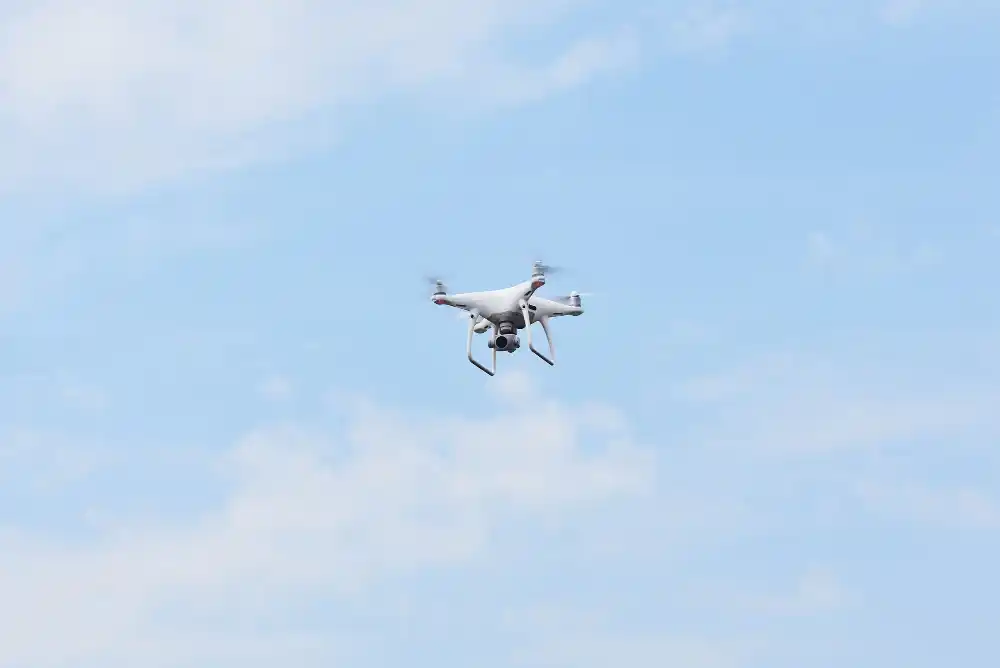
A modern drone is not just a radio-controlled toy, but a high-tech aircraft with a camera, stabilization sensors, a GPS module, and intelligent flight modes. To access all the functionality of a quadcopter, you need to connect the drone to your smartphone correctly. In most models, the phone acts as the center for control, monitoring, and settings.
In this article, we will take a detailed look at how to connect a drone to a phone, what connection methods exist, what apps are needed for Android and iOS, what problems users encounter, and how to solve them.
Why connect a drone to your phone
Connecting a quadcopter to a smartphone unlocks access to key drone features:
- real-time drone control;
- video streaming from the camera (FPV — First Person View);
- photo and video shooting with quality settings;
- activation of intelligent flight modes;
- control of battery charge, altitude, distance, and speed;
- working with GPS functions and autopilot.
Without synchronization with a smartphone, most modern drones operate in a severely limited mode or do not start at all.
The main ways to connect a drone to a phone
The most common option is to connect the drone to the phone via Wi-Fi. In this case, the quadcopter creates its own wireless network to which the smartphone connects. This method is often used in budget models, selfie drones, and devices for beginners. It is easy to set up and does not require additional equipment, but it has limitations in terms of flight range and signal stability, especially in urban areas or in conditions of strong radio interference.
A more reliable and professional solution is to connect the smartphone to the remote control. In this configuration, the drone communicates directly with the controller via a radio channel, and the phone acts as a display and navigation panel. This significantly increases the range, reduces video signal delay, and ensures more accurate control even at long distances.
Some models also use a cable connection between the phone and the remote control. This provides the most stable data transmission, minimizes signal loss, and reduces the load on the smartphone battery, which is especially important during long flights and professional shooting.
How to connect a drone to a phone: step-by-step explanation
Before starting the flight, you need to install the official mobile application recommended by the drone manufacturer. Usually, a link to the program or a QR code can be found in the quadcopter manual. It is important to download the application from the App Store or Google Play, as third-party software may not work correctly or may not support a specific model at all.
After installing the app, turn on the drone and place it on a flat surface. When the device has finished initializing, turn off mobile data on your smartphone and enable Wi-Fi. Then connect to the network broadcast by the quadcopter. The name of this network usually contains the model or serial number of the device.
After connecting to Wi-Fi, all that remains is to launch the app and follow the prompts on the screen. After a few seconds, the display will show the image from the drone's camera, as well as controls, flight telemetry, and access to settings.
The possibilities of connecting a drone to a smartphone
After successful synchronization, the user gains full control over the quadcopter. The phone allows you not only to control the flight direction but also to change camera settings, select shooting modes, activate automatic scenarios, and work with GPS navigation. Features such as Follow Me, point-to-point flight, object fly-around, or return home work through the mobile app.
In case of drone loss or an emergency, your smartphone helps you track the last coordinates, view saved data, and significantly increases the chances of returning the device.
How to know if your phone will connect to the drone
The compatibility of the drone with your smartphone depends on the Wi-Fi frequency on which the copter operates and the version of the phone's operating system. Some models use the 2.4 GHz standard, others use 5 GHz, so before buying, make sure your smartphone supports the required range.
Manufacturers also often specify the minimum requirements for Android or iOS, below which stable operation of the app is not guaranteed.